


 设置
设置
 快速交货
快速交货
 免运费
免运费
 国际贸易术语
 支付类型
支付类型


 市场产品
市场产品

How to Make a Virtual Machine Environment
2026-04-27 | By Andrew Kazour
Overview
This post will go over the creation of a VM, setup, and all the needed software for a development environment that can theoretically run offline. The VM is designed to have a code compiler, document editor, PDF viewer, and an IDE that can all run when the internet is turned off. This could be used so a company can replicate hundreds of these for trainees and make sure they can't access the internet for security.
The environment I made includes:
- A local code editor
- A compiled-language compiler
- A full Integrated Development Environment (IDE)
- A document editor
- A standalone PDF viewer
VM Creation and Configuration Process
1. AWS Lightsail
The VM was created using AWS Lightsail by upgrading from the free plan to the paid version and creating a Windows instance. I chose the 90-day free plan because I didn't need it for longer and I wanted a more powerful option.
Reasons for choosing AWS Lightsail:
- Reliable and widely used cloud platform
- Simple VM setup process
- Free-tier eligible Windows instances
My experience with the AWS ecosystem has been very positive. They give you everything you need to create cloud services with ease. This is why I think using AWS Lightsail is really good for a first-time user, and you can tailor the VM to your needs easily.
2. Creating the Virtual Machine
- Log in to the AWS Console (or make an account).
- Navigate to AWS Lightsail.
- Click "Create instance."
- Select Microsoft Windows as the operating system and choose the closest location to you for the instance location.
(You could make a Linux machine, but in this instance, I was creating Windows “training” machines and downloaded software for them.)
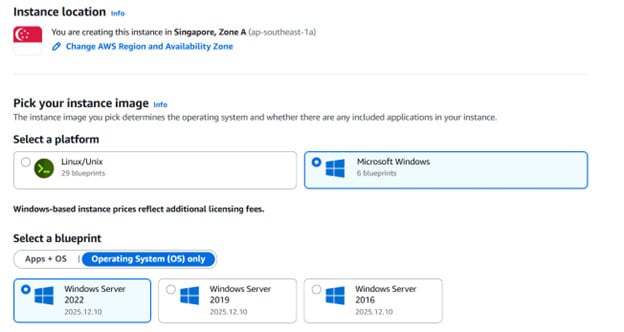
- Choose a Windows Server blueprint (default option). I chose the newest version because it would be the most up-to-date and be most similar to what I am using now.
- Select a free 90-day instance plan or whatever plan you want to pay for.
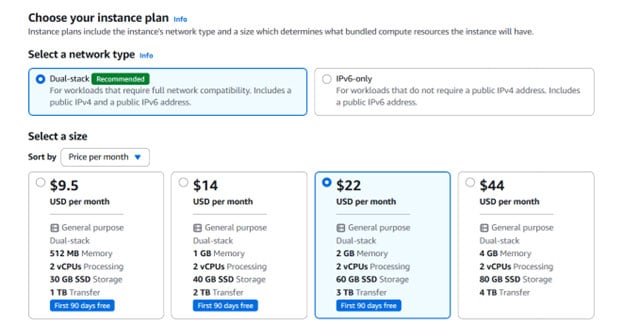
- Name the instance.
- Click "Create instance" and wait for it to start up.
3. Accessing the VM and making sure the IP is static
- Once the instance is running, select it in the Lightsail dashboard.
- Go to the Network tab and scroll down to the “Public IPv4" and create a static IP. This is so you can always use the same IP to connect to it, even if you restart the VM!
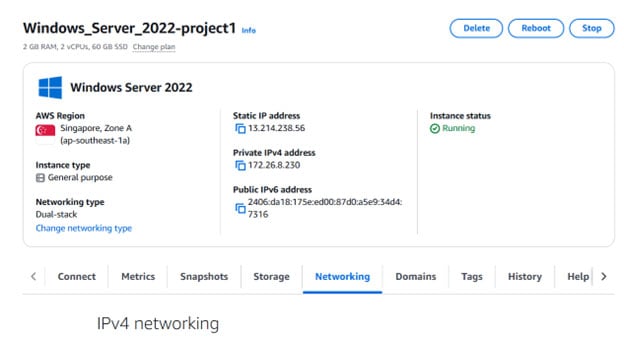
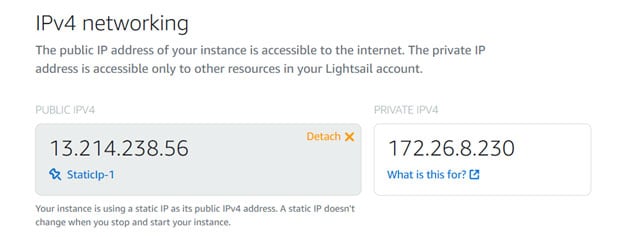
- Then go to the Connect tab and use the Connect using RDP option, or connect via remote desktop connection.
- Log in to the Windows desktop environment.
1. For a Remote Desktop Connection, you need to connect with the IPv4 address and then the username and password given. I would recommend this option as it will allow you to connect to the machine without having to log into AWS.
4. Software Installation
Installed Software: This software is what I chose, but you can choose anything you want on your VM.
Code Editor
- Visual Studio Code
Compiler
- MinGW-w64 (GCC for C/C++): https://sourceforge.net/projects/mingw/
IDE
- Clion
Document Editor
- LibreOffice Writer
PDF Viewer
- Adobe Acrobat Reader
Each installer was downloaded from the official source and installed using default settings unless otherwise noted. I chose this software as it allowed me to do any work I needed to do on the VM.
5. Compiler Configuration
- Install MinGW-w64.
- Add the MinGW bin directory to the Windows system PATH.
- Go to environment variables.
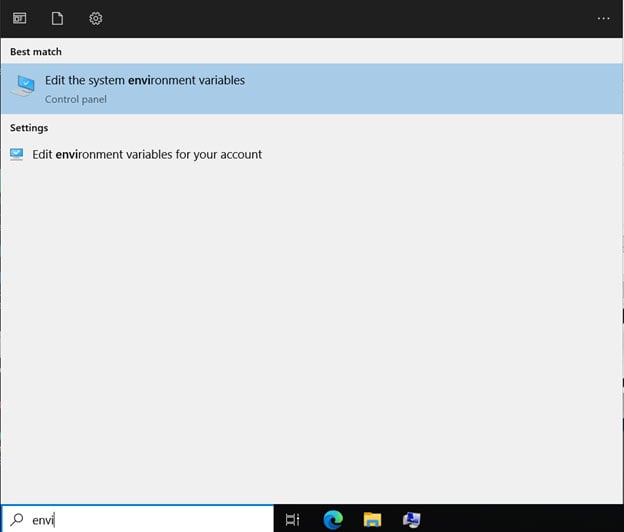
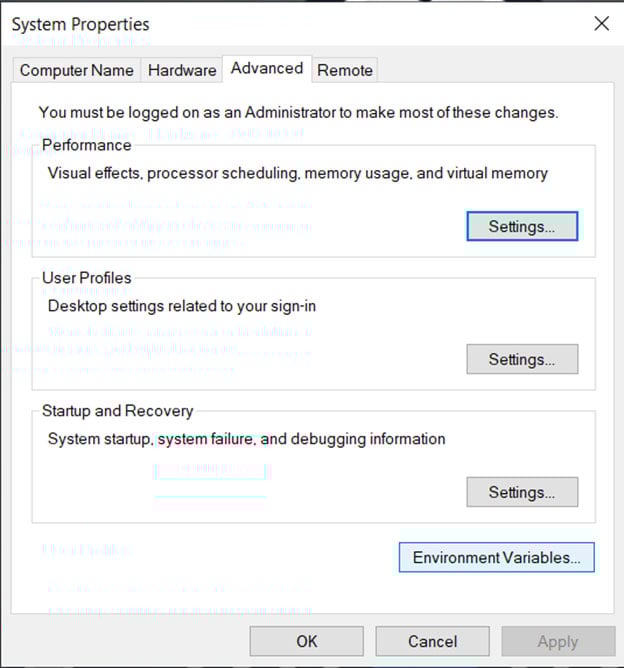
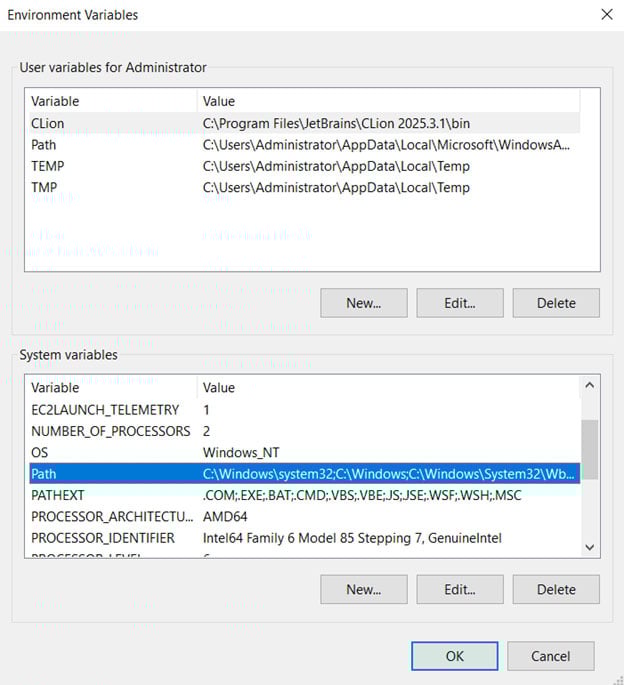
- Edit the path in system variables and add C:\MinGW\bin.
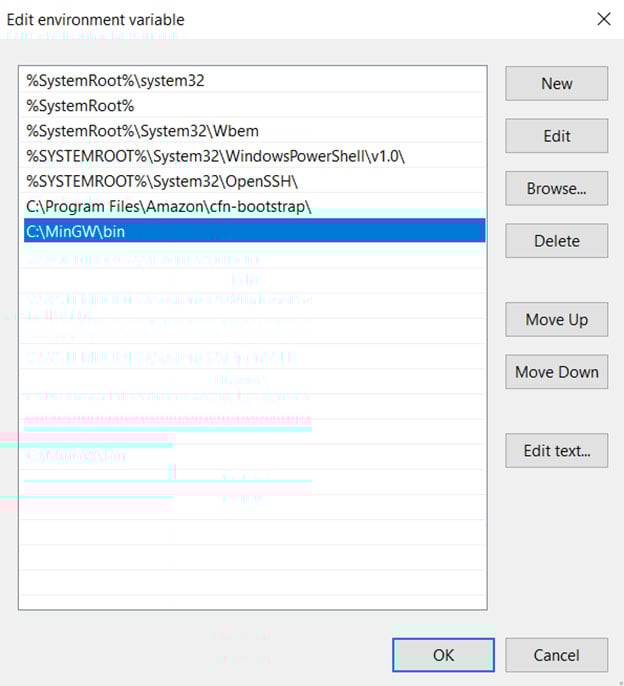
Verify installation by opening Command Prompt and running:
gcc --version
- Now C++ and C files can be compiled and run from CMD.
This part tends to confuse people, but once you do it once, you'll be a pro and can do it on other downloads that need it.
6. Logging into the VM without AWS
- Open Remote Desktop Connection on your Windows machine by pressing the Windows key and searching for "remote" (if using a Mac, you need to download a remote desktop application from the App Store.)
- Enter the VM IP address (Mine was 13.214.238.56.)
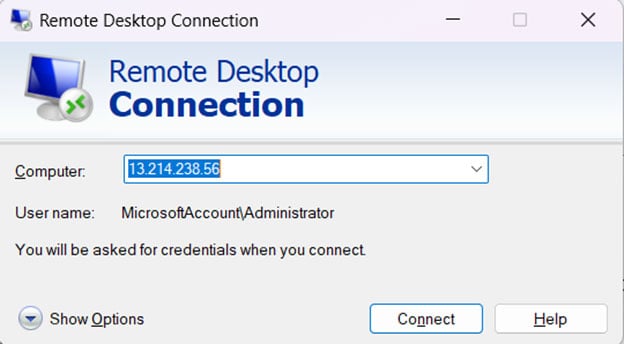
- Log in using the provided credentials (mine were the following):
Username: Administrator
Password: w*IKDq$Ix7T&LW(%KdSSPk6QIg$%DRCr
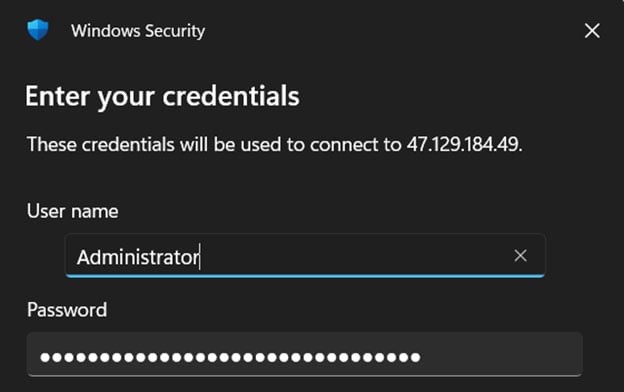
- Then, on the next pop-up, press “Yes,” and you will be connected to the VM.
7. Finalize and make more copies
After setting up the VM and downloading all the software from the official sources, check each piece of software to make sure it works. Now the VM is set up, and a snapshot can be created so the VM can be mass copied. The snapshot can be used to create an AMI (which is a blueprint for a VM) in AWS, which can then be used to quickly create many VMs if needed.










 新加坡
新加坡